Protecting access to your data is crucial and securing login is a critical part of it. Having a secure password is the starting point. Additionally we recommend using the following options:
Two-Factor Authentication
In your personal settings (https://cloud.yourdomain.net/settings/user/security), look up the Second-factor Auth setting.
TOTP (Authenticator app)
In your personal settings, look up the Second-factor Auth setting. In this example this is TOTP, a Authenticator compatible time-based code:

You will see your secret and a QR code which can be scanned by the TOTP app on your phone (or another device). Depending on the app or tool, type in the code or scan the QR and your device will show a login code which changes every 30 seconds.
Recovery codes if you lose your second factor
You should always generate backup codes for 2FA. If your second factor device gets stolen or stops working, you can use one of these codes to unlock your account. It effectively functions as a backup second factor. To get the backup codes, go to your personal settings and look under Second-factor Auth settings. Choose Generate backup codes:

You will then see a list of one-time-use backup codes:
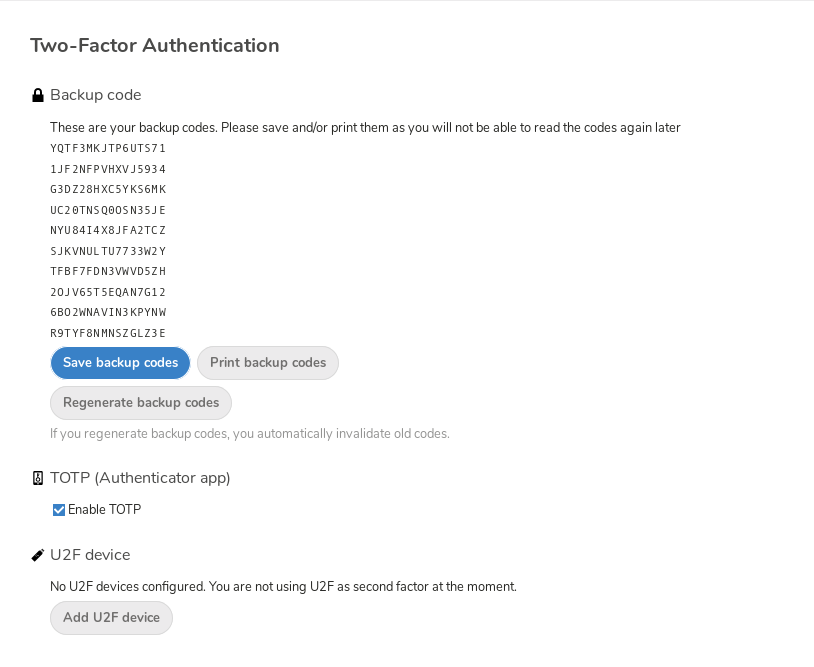
Store these codes somewhere safe where you can find them. Do not keep them with your second factor (such as your mobile phone), but store them separately so that losing one does not mean losing the other.
Logging in with two-factor authentication
After you log out and log in again, you will see a prompt to enter the TOTP code in your browser. If you have enabled more than one second factor, you will see a selection screen where you can choose which method to use for this login. Select TOTP:

Now, just enter your code:

If the code was correct you will be redirected to your Nextcloud account.